Clipboard manager, snippets, and quick paste

Snippeta FAQ: Clipboard Manager, Snippets, and Quick Paste

Learn how Snippeta helps you save, organize, copy, and paste AI prompts, links, quick replies, notes, captions, and other reusable text across iPhone, iPad, Mac, and Android.

This FAQ is designed to answer common questions about using Snippeta as a clipboard manager, text snippet organizer, and custom paste keyboard. It focuses on real use cases like saving AI prompts, reusable links, quick replies, reference notes, and other text you want to retrieve faster.

A quick visual guide to the app

Use these screenshots as shortcuts to the questions that explain Snippeta's most important workflows.

What is Snippeta?

Snippeta is a clipboard manager and text snippet app for saving reusable text so you can copy it in one tap instead of rewriting it every time. It is designed for text you use again and again, like AI prompts, links, quick replies, captions, console commands, and reusable notes.

On mobile, Snippeta also includes a custom keyboard so your saved text is easier to paste into other apps. That makes it useful for productivity workflows, content creation, support replies, and everyday copy and paste tasks.

Is Snippeta a clipboard manager or a text snippet manager?

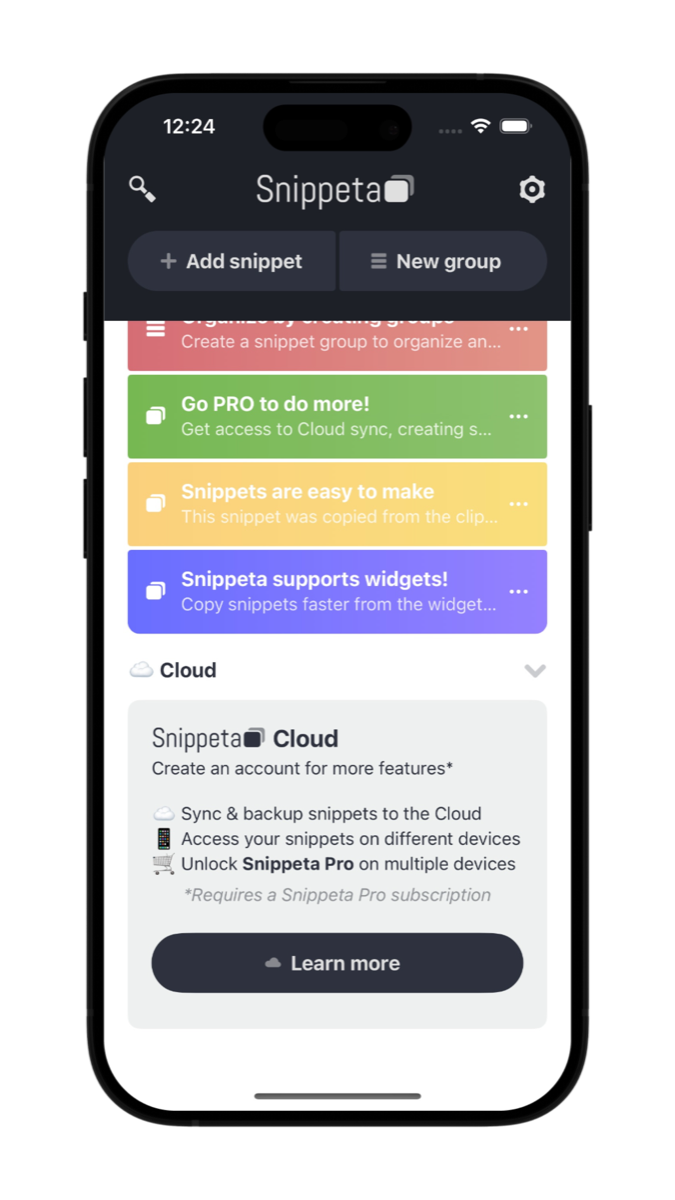
Snippeta is both. It works like a clipboard manager by helping you copy text quickly and reuse it whenever you need it, but it is also a text snippet manager because your saved text stays organized in named snippets and groups instead of living only in a temporary clipboard history.

That combination is what makes Snippeta practical for repeated work. You are not just copying once and losing the text later. You are building a reusable library of prompts, links, quick replies, and other snippets that stay easy to retrieve.

What kinds of text can I save in Snippeta?

You can save almost any short or medium-length text you reuse often. Common examples include AI prompts, social captions, quick replies, links, outreach templates, bios, hashtags, addresses, support messages, note fragments, and console commands.

The app is especially useful when the same text shows up across multiple apps or workflows. If you often catch yourself retyping something, searching through old notes for it, or copying it from another document, it is probably a good fit for Snippeta.

Can I save AI prompts in Snippeta?

Yes. Snippeta works well as an AI prompt manager because it gives you a fast way to save, organize, and reuse prompts without digging through chat history or scattered notes. You can keep prompt templates grouped by use case, client, project, or workflow.

This is helpful for prompt libraries you refine over time, especially when you reuse research prompts, writing prompts, coding prompts, and formatting instructions. Instead of starting from scratch, you can copy a prompt in one tap or paste it with the custom keyboard.

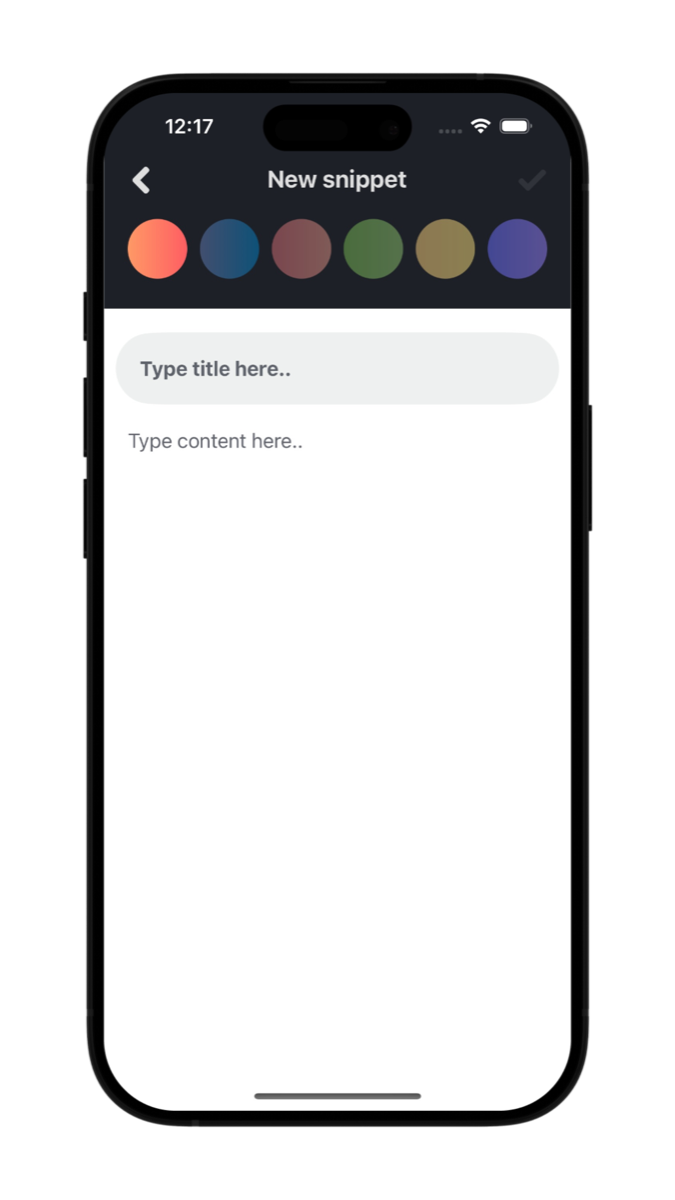
Snippeta screen for creating a new snippet
Create dedicated prompt snippets instead of rebuilding them from memory each time.

How do I paste saved prompts or snippets into ChatGPT, Gemini, and other apps?

There are two easy ways to do it. You can open Snippeta, tap a saved snippet to copy it to your clipboard, and then paste it into the app you are using. That works well when you want to grab a prompt, link, reply, or note from your saved library and move it into another app.

On mobile, you can also use the Snippeta custom keyboard for faster access while you are already inside another app. That makes it easier to paste saved prompts into ChatGPT, Gemini, email apps, messaging apps, and other places where reusable text can save time.

Does Snippeta have a custom keyboard for quick paste?

Yes. Snippeta includes a custom keyboard for quick paste on mobile, which lets you access saved snippets from inside other apps. Instead of switching back and forth between windows, you can open the keyboard, browse your saved text, and paste what you need faster.

This is especially useful when you want to reuse AI prompts, quick replies, links, or captions while staying in the flow of your current task. Think of it as a shortcut layer for the reusable text you rely on most.

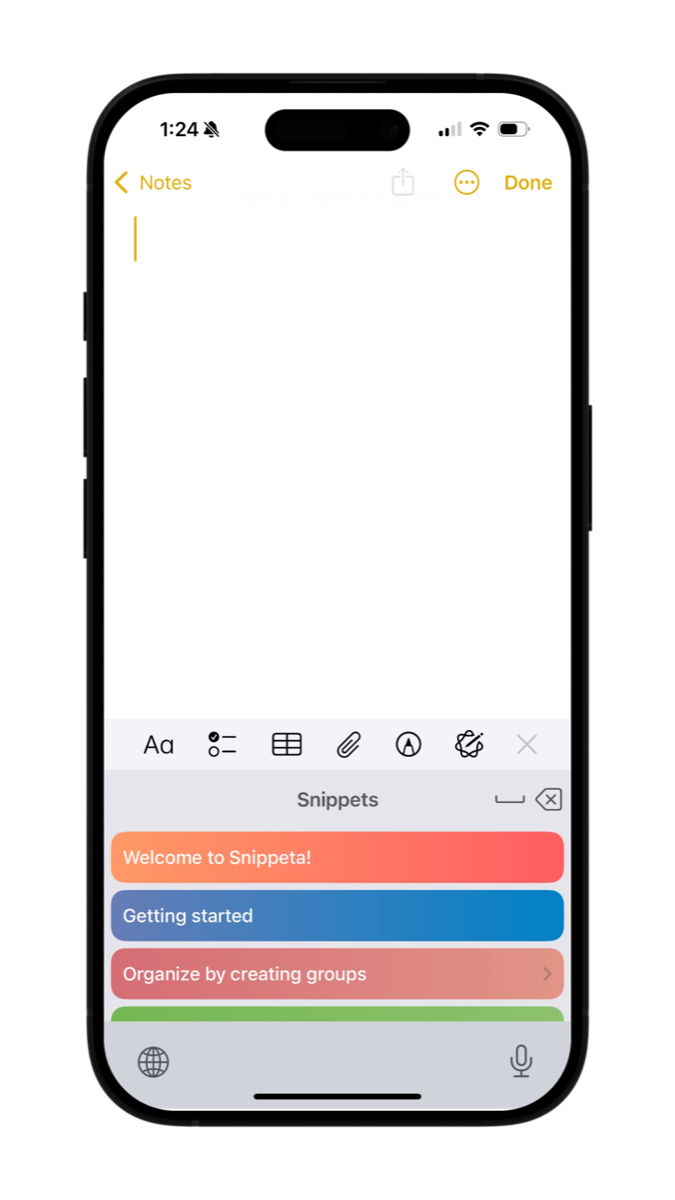
Snippeta keyboard open inside Apple Notes
The Snippeta keyboard lets you paste saved text without leaving the app you are in.

Can I organize snippets into groups and sub-groups?

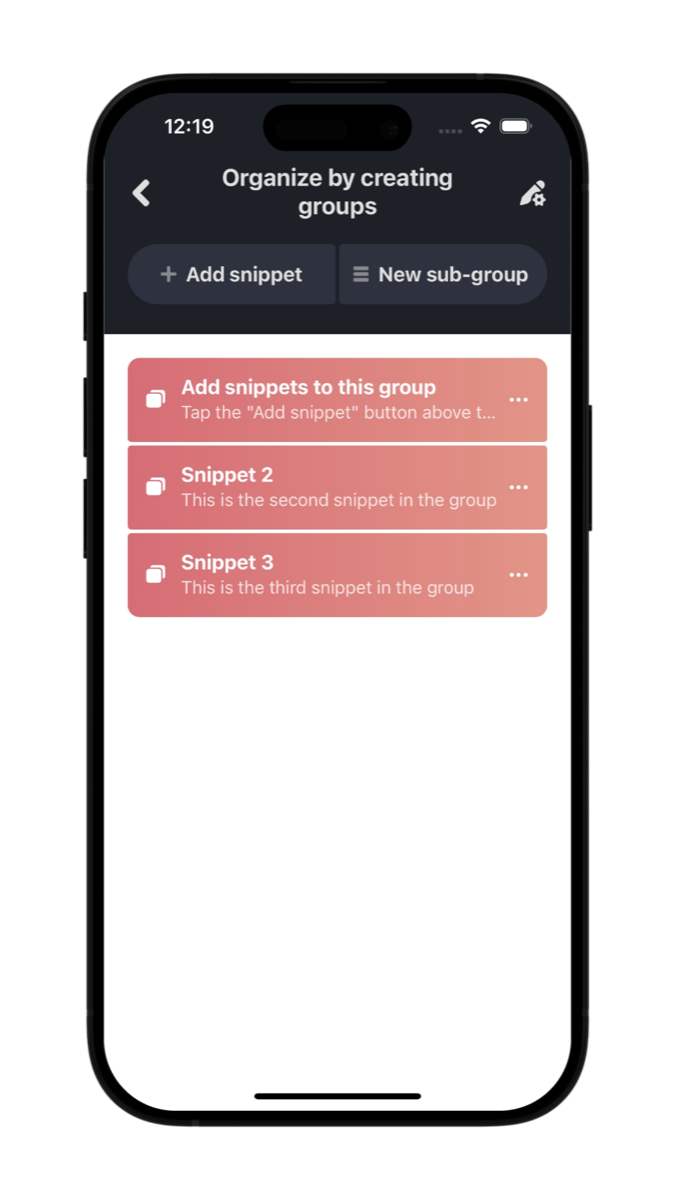
Yes. Snippeta lets you organize snippets into groups, and Snippeta Pro adds support for nested sub-groups. That gives you a cleaner way to separate prompts, links, notes, replies, and other reusable text by category, project, or context.

Organizing snippets matters because retrieval is part of productivity. If your saved text is not visually scannable and easy to browse, it is easy to forget what you have already collected. Groups and sub-groups help keep your most useful text easy to find and easy to reuse.

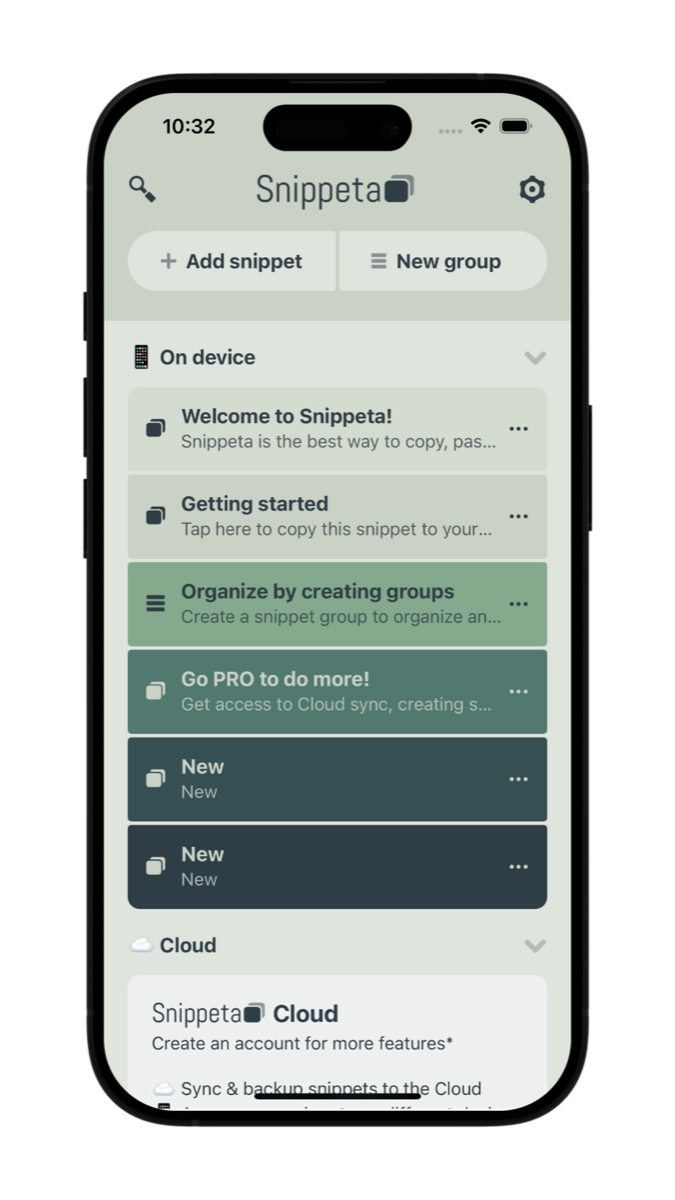
Snippeta group view with snippets organized together
Groups keep related snippets in one place, and Pro adds nested sub-groups for deeper organization.

Does Snippeta sync across devices?

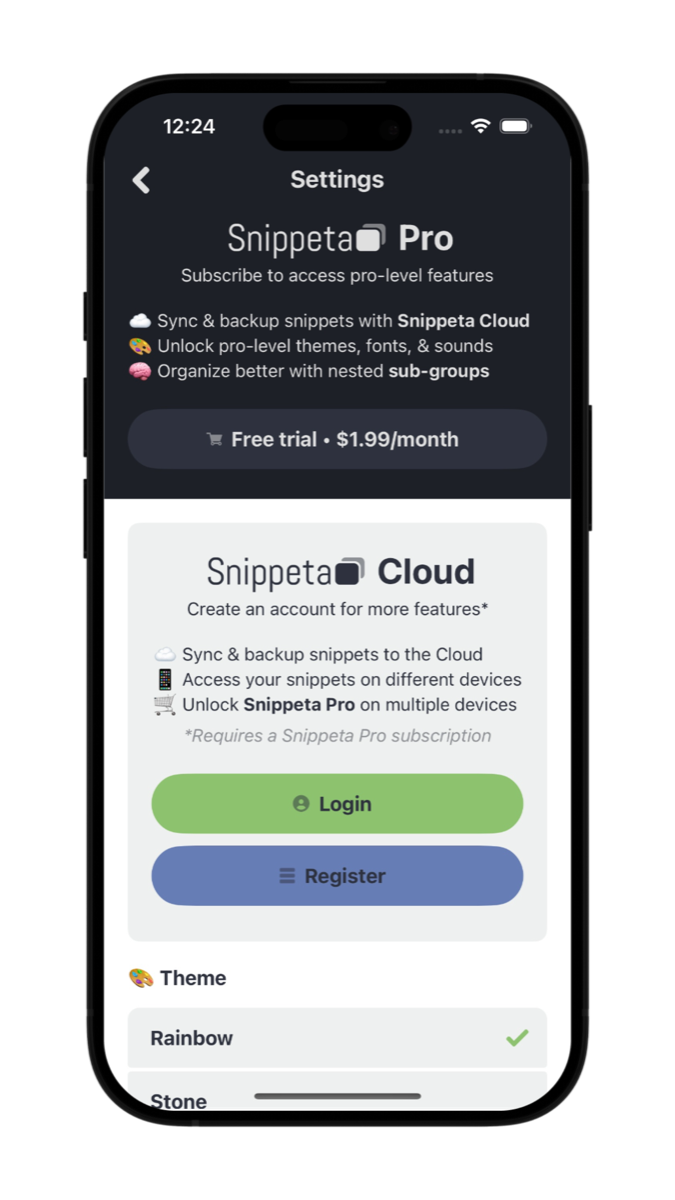
Snippeta can store snippets directly on your device, and Snippeta Cloud is available for sync and backup. With Snippeta Pro, you can back up your text snippets, access them on different devices, and unlock your Pro features across supported devices.

That setup is helpful if you want a reusable text library that is not limited to one phone, tablet, or computer. It also adds a backup layer for snippets you rely on often, such as prompt libraries, quick replies, and reference text.

Snippeta Cloud section showing sync and backup features
Cloud sync keeps your snippets backed up and accessible across supported devices.

Is Snippeta available on iPhone, iPad, Mac, and Android?

Yes. Snippeta is available on iPhone, iPad, and Mac through the App Store, and it is also available on Android through Google Play. That makes it a flexible option if you want the same text management workflow across Apple devices and Android.

If cross-device access matters to you, pairing supported platforms with Snippeta Cloud can make it easier to keep important snippets available wherever you work. That includes reusable prompts, links, notes, and other text you want close at hand.

How is Snippeta different from keeping reusable text in Notes?

Notes apps are great for capture, brainstorming, and long-form reference, but they are not always optimized for fast retrieval and quick paste. Snippeta is built specifically for reusable text you want to find quickly, copy in one tap, and paste into other apps without extra friction.

A practical workflow is to keep broad thinking and research in a notes app, then move the text you reuse most into Snippeta. For example, someone might organize long-form notes in Apple Notes with a PARA-style system, then store high-use prompts, templates, and repeatable snippets in Snippeta for faster retrieval.

Ready to save and paste reusable text faster?

Download Snippeta to build your snippet library for AI prompts, quick replies, captions, links, notes, and other text you use often.